Interacting with the User and other Applications
PopUps and input dialogs
Section titled “PopUps and input dialogs”In the standard the following dialog boxes are shown in the middle of the screen, where SikuliX (IDE or from commandline) is running (usually the primary screen).
Added in 1.1.1As a backport from SikuliX version 2 I added the timed/autoclosing
versions of popup, popAsk, popError and
input. For more information look here.
They are always on top from the beginning, no matter which application currently is the frontmost. While the dialog is visible, you might move it around and act on other applications, until you work with the dialog box.
Added in 1.1.1If you want the dialog to appear in a special location on the screen (even on other screens in multimonitor situations), you can use the function popat to define this location. The dialog will be positioned here with the center of its dialog panel. Be aware, that locations near the edge of the screen might make parts of the dialog not accessible (this is not checked). This location will stay in effect until changed by another use of popat. A popat without parameters will reset it to the standard (center of primary screen).
Note for Java Usage These methods are available in class org.sikuli.script.Sikulix
popat(x, y)
Section titled “popat(x, y)”popat(location)
Section titled “popat(location)”popat(region)
Section titled “popat(region)”popat()
Section titled “popat()”Define the location, where the center of popup dialogs should be positioned from now on.
-
x— x value of the location -
y— y value of the location -
location— the location as aLocation -
region— the location as the center of the givenRegion
If no parameter is given, the location will be reset to the center primary screen (default).
popup(text, [title])
Section titled “popup(text, [title])”Display a dialog box with an OK button and text as the message. The script then waits for the user to click the OK button.
-
text— text to be displayed as message -
title— optional title for the messagebox (default: Sikuli Info)
Example
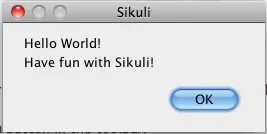
popup("Hello World!\nHave fun with Sikuli!")A dialog box that looks like below will popup
Note: \\n inserts a line break
popError(text, [title])
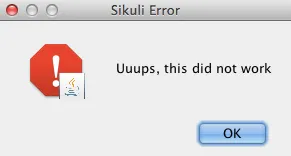
Section titled “popError(text, [title])”Same as popup but with a different title (default Sikuli Error) and alert icon.
Example
popError("Uuups, this did not work")A dialog box that looks like below will popup
popAsk(text, [title])
Section titled “popAsk(text, [title])”Returns: True if user clicked Yes, False otherwise
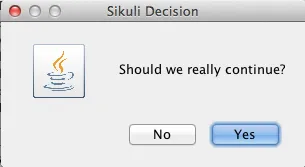
Same as popup but with a different title (default Sikuli Decision) and alert icon.
There are 2 buttons: Yes and No and hence the message text should be written as an
appropriate question.
Example
answer = popAsk("Should we really continue?")if not answer: exit(1)A dialog box that looks like below will popup
input([msg], [default], [title], [hidden])
Section titled “input([msg], [default], [title], [hidden])”Display a dialog box with an input field, a Cancel button, and an OK button. The optional text title is displayed as the messagebox title and the text msg as some explanation near the input field. The script then waits for the user to click either the Cancel or the OK button.
-
msg— text to be displayed as message (default: nothing) -
default— optional preset text for the input field -
title— optional title for the messagebox (default: Sikuli Input) -
hidden— (default: False) if true the entered characters are shown as asterisks
Returns: the text, contained in the input field, when the user clicked Ok
None, if the user pressed the Cancel button or closed the dialog
Example: plain input
name = input("Please enter your name to log in:")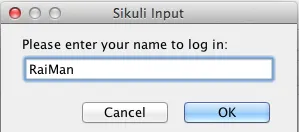
A dialog box that looks like above will appear to allow the user to
interactively enter some text. This text is then assigned to the variable
name, which can be used in other parts of the script, such as paste(name)
to paste the text to a login box.
Example: input with preset
name = input("Please enter your name to log in:", "anonymous") # a preset input text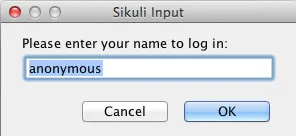
When using the parameter default, the text input field will be pre-populated with the
given text, so the user might just click OK/Cancel or edit the content of the input field.
Example: input with hidden input
password = input("please enter your secret", hidden = True)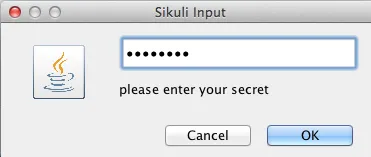
As the user inputs his secret infoemation, the text is shown as one asterisk per character.
Added in 1.1.0inputText(message, [title=""], [lines=9], [width=20], [text=""])
Section titled “inputText(message, [title=""], [lines=9], [width=20], [text=""])”-
message— text to be displayed as message -
title— optional title for the messagebox (default: SikuliX input request) -
lines— how many lines the text box should be high (default: 9) -
width— how many characters the box should have as width (default: 20) -
text— a multiline text, that is preset in the textarea
Returns: the multiline text content when user presses OK (might be empty) or None if the user presses CANCEL
A message box with the given height and width is displayed and allows the user to input as many lines of text as needed. The lines are auto-wrapped at word boundary. A vertical scrollbar is shown if needed.
The default font is the Java AWT Dialog (a sans-serif font) in size 14, which is also the minimum size possible. One might switch to a monospace font using Settings.InputFontMono=True. Setting it to False switches it back to the standard for the next inputText().
A bigger size than 14 can be set using Settings.InputFontSize=NN. Setting it to a value smaller than 14 (e.g. 0) will reset it to 14 again.
Example
# selects a monospaced font# default is False meaning a SansSerif fontSettings.InputFontMono = True
# default fontsize is 14 (also minimum size)# use a fontsize of 20Settings.InputFontSize = 20
story = inputText("please tell a story")lines = story.split("\n") # split the lines in the list linesfor line in lines:   print line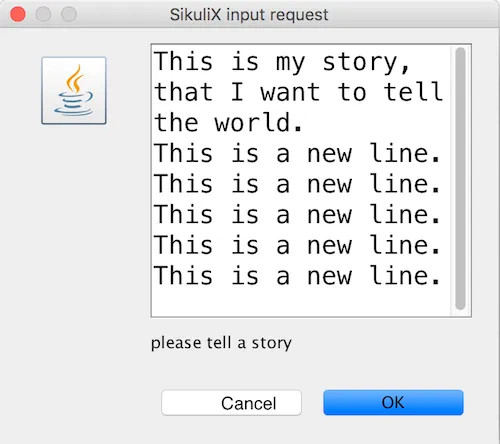
select([msg], [title], [options], [default])
Section titled “select([msg], [title], [options], [default])”-
msg— text to be displayed as message (default: nothing) -
title— optional title for the messagebox (default: Sikuli Selection) -
options— a list of text items (default: empty list, nothing done) -
default— the preselected list item (default: first item)
Returns: the selected item (might be the default)
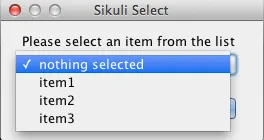
Displays a dropdown menu containing the given options list items with the default selected. The user might select one item and click ok.
Example
items = ("nothing selected", "item1", "item2", "item3")selected = select("Please select an item from the list", options = items)if selected == items[0]: popup("You did not select an item") exit(1)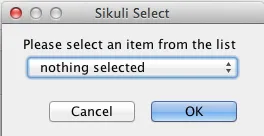
popFile([title])
Section titled “popFile([title])”Display a file open dialog, that lets the user select a folder or file.
title— optional title for the dialogbox (default: Select a file or folder)
Returns: the absolute path of the selected file or folder as a string
Timed (autoclosing) popups
Section titled “Timed (autoclosing) popups”General information on using these features:
- Jython Scripting: the usage in all cases is
returnValue = Do.function(). Do not try any other usage, since this might clash with existing version 1 implementations. - since the implementation is only on the Java level, there are no named parameters
(unlike the known non-timed versions of
popup,popAsk, …). Nevertheless it is possible to only give a subset of parameters, as long as the defined sequence is obeyed. In doubt useNone/nullfor a parameter, to get the default value. See the given examples for use cases. - if the dialog is autoclosed by intention, the return value is
None/nullin all cases. - the dialogs can only be displayed on the primary screen
- Java usage in all cases is
returnValue = SX.function(), since the feature is implemented inorg.sikuli.script.SX.
These are the possible parameters and their defined sequence:
- message a declarative text to be shown in the dialog (
all methods, default"not set") - title the dialog box title (
all methods, default"SikuliX") - preset a prefilled input text (
input, default empty) - hidden a boolean value,
True/truewill show the input text as dots ((input, defaultFalse/false) - timeout an integer as seconds after that the dialog will autoclose (
all methods, default stay open) - location a Region object, over which the dialog will be displayed centered (
all methods, default screen center) which allows to place the dialog anywhere on the screen. As a convenience you can useRegion(x, y)if you want to specify a point. Hence no need to usepopAt().
Do.popup([parameters])
Section titled “Do.popup([parameters])”Display an informational message with an OK button.
parameters— see above
Returns: always True, None/null if autoclosed
Example:
result = Do.popup("autoclosed after 3 seconds", 3)if not result: print "user did not click ok"Do.popAsk([parameters])
Section titled “Do.popAsk([parameters])”Display an informational message with YES and NO button.
parameters— (see above)
Returns: True if YES was clicked, False otherwise, None/null if autoclosed
Example:
result = Do.popAsk("Nothing done if not\nclicked within 3 seconds", "Your decision", 3)if None == result: print "nothing to do"elif result: print "user said yes"else: print "user said no"Do.popError([parameters])
Section titled “Do.popError([parameters])”Display an error message with an OK button.
parameters— see above
Returns: always True, None/null if autoclosed
Example:
where = Region(0,0,300,300)result = Do.popError("autoclosed after 3 seconds", "Severe Error", 3, where)# the dialog will display somewhere in the upper left of the screen# with a box title as "Severe Error"if not result: print "user did not click ok"Do.input([parameters])
Section titled “Do.input([parameters])”Display an informational message and ask for a text input with a possible preset text in the input field.
The dialog has an OK and a Cancel button. With the hidden parameter as True/true the text
in the input field will be shown as dots (not readable).
parameters— see above
Returns: the text in the input field, when clicked OK, False/false otherwise, None/null if autoclosed
Example:
where = Region(0,0,300,300)result = Do.input("please fill in", "A filename", "someImage.png", where)# the dialog will display somewhere in the upper left of the screen# with a box title as "A filename"# and a preset input field containing "someImage.png"if not result: # input field was left empty print "we will use a default file name"else: print "we will use as filename: " + resultExample for hidden input:
password = Do.input("please enter your secret", "Secret", "defaultSecret", True, 10)# the dialog's input field displays the text as dots per characterif not password: # password is empty or dialog autoclosed print "not allowed - exiting" exit(1)# we can proceedListening to Global Hotkeys
Section titled “Listening to Global Hotkeys”Sikuli can listen to global hotkeys that you register with Env.addHotkey
and call the corresponding handler (sikuli functions) when the user presses
the hotkeys.
BE AWARE Be sure, that the key combination you use is free and not used by the system or any other application. The hotkey feature may not report an error in such situations and as a consequence your hotkey definition simply does not work as expected. An example is the F12 key on Windows alone or with SHIFT, which in the standard is occupied by the system as global debugging key (might be released by hacking the registry).
Env.addHotkey(key, modifiers, handler)
Section titled “Env.addHotkey(key, modifiers, handler)”Register the specified key + modifiers as a global hotkey. When the hotkey is pressed, the specified function handler will be called.
-
key— a character or a constant value defined inKey. -
modifiers— Key modifiers, which can be one or multiple constants defined inKeyModifier.
Returns: True if success.
def openAppleMenu(event): click(“apple.png”)
When the user pressed Ctrl+Alt+F1, click the top-left apple icon.
Section titled “When the user pressed Ctrl+Alt+F1, click the top-left apple icon.”Env.addHotkey(Key.F1, KeyModifier.ALT+KeyModifier.CTRL, openAppleMenu)
Env.removeHotkey(key, modifiers)
Section titled “Env.removeHotkey(key, modifiers)”Unregister the registered global hotkey key + modifiers.
-
key— a character or a constant value defined inKey. -
modifiers— Key modifiers, which can be one or multiple constants defined inKeyModifier.
Returns: True if success.
A more generic example
It keeps the handlers free from processing code, just signals the keypress using a global variable to the main loop. The main loop simply permanently scans the global variables and then does what has to be done.
The whole process is blocking in the sense, that hotkeys are processed one after the other in the sequence they appear in the main loop and each hotkey is only recognized again, after its current press is processed in the main loop.
This setup keeps things more transparent and straightforward. Other setups even with threading are possible, but need much more effort to correctly synchronize the processing especially when mouse or keyboard actions are involved.
Example:
# hotkey to stop the scripthotKeyX = False; # global to communicate with main loopdef xHandler(event):  global hotKeyX  hotKeyX = True # tell main loop that hotkey was pressed# add the hotkey with its handlerEnv.addHotkey("x", KeyModifier.CTRL + KeyModifier.SHIFT, xHandler)
# function hotkey: something to do when pressedhotKeyN = False;def nHandler(event):  global hotKeyN  hotKeyN = TrueEnv.addHotkey("n", KeyModifier.CTRL + KeyModifier.SHIFT, nHandler)
# the main loop, that simply waits for pressed hotkeys# which are then processedcount = 0;while True:  if (hotKeyX):    popup("processing ctrl+shift+x: stopping")    exit()  if (hotKeyN):    hotKeyN = False # reset the hotkey variable    # and now do something    count += 1    popup("processing ctrl+shift+n: %d" % count)  wait(1)
Another example showing some specials
All hotkeys use ctrl-alt as modifieres:
### hotkey setup section ###
# variants to end the scriptEnv.addHotkey("x", KeyModifier.ALT+KeyModifier.CTRL, lambda e: exit())Env.addHotkey("q", KeyModifier.ALT+KeyModifier.CTRL, quit)
def quit(event):  print "handler quit ctrl-alt-x"  global running  running = False
# basic hotkey definition with a related handler nameEnv.addHotkey("c", KeyModifier.ALT+KeyModifier.CTRL, handlerC)
def handlerC(event):  print "handlerC: seconds since start:", int((time.time() - start))
# at hotkey press a function will be called whose name is currently held by variable todoEnv.addHotkey("v", KeyModifier.ALT+KeyModifier.CTRL, lambda e: todo(e))
def handlerC1(event):  print "handlerC1: seconds since start:", int((time.time() - start))
todo = handlerC # default at start of script
# at hotkey press the function handlerParam will be called# with a parameter value currently held by global variable startEnv.addHotkey("b", KeyModifier.ALT+KeyModifier.CTRL, lambda e: handlerParam(start))
def handlerParam(begin):  print "handlerParam: seconds since start:", int((time.time() - begin))
### main workflow start ###start = time.time() # a global variable used in the handlerscount = 0
running = Truewhile running: # will end the loop if running is False
  wait(1) # some timeconsuming stuff here
  # one can always check in between and leave the loop  if not running: break
  wait(1) # some timeconsuming stuff here
# changes the handler for hotkey v after about 20 seconds  count += 1  if count > 10: todo = handlerC1
# here might be some postprocessing before script finally ends# you might remove your hotkeys before, to avoid interference by the handlersprint "PostProcessing"
The variants to end the script show a graceful version (ctrl-alt-q) and a brute-force version (ctrl-alt-x).
- The graceful version just signals the keypress via a global variable and leaves it to the main workflow to react, when it makes sense.
- The brute-force variant uses a lambda expression (anonymous function with only a single expression), that stops the script without notice at time of key press
Starting and stopping other applications and bring them to front
Section titled “Starting and stopping other applications and bring them to front”Completely revised in version 1.1.0
Here we talk about the basic features of opening or closing other applications and switching to them (bring them to front).
For the more sophisticated usages including some basic handling of
application windows look class App.
You can use the feature run(someCommand) to delegate something, you can do on a commandline, to a seperate process. The script waits for completion and you have acces to the return code and the output the command has produced.
NOTE on Java usage At the Java level only the features of the App class are available (class App).
General hint for Windows users on backslashes \ and double apostrophes ”
In a Sikuli script in normal strings enclosed in ” (double apostrophes), these special characters \ and ” have to be escaped using a backslash, when you have them inside the string. So for one backslash you need \\ and for one ” you need \”. In a string enclosed in ’ (single apostrophes), a ’ has to be \’ and a ” is taken as such.
To avoid any problems, it is recommended to use the raw string r'some text with \ and " ...',
since there is no need for escaping (but no trailing \ is allowed here).
This is especially useful, when you have to specify Windows path’s containing blanks or want to setup command lines for use with openApp(), App.open(), run(), os.popen() or Jythons Subprocess module.
NOTE for Mac users As application name use the name, that is displayed with the program symbol on the taskbar, which might differ from what is displayed in the top left of the menu bar.
Example: The Chrome browser displays “Chrome” in the menu bar, but the application name is “Google Chrome”. So openApp(“chrome”) will fail, whereas openApp(“google chrome”) will do the job. Same goes for switchApp() and closeApp().
openApp(application)
Section titled “openApp(application)”Open the specified application, or swith to it, if it is already open.
application— a string containing the name of an application (case-insensitive), that can be found in the path used by the system to locate applications. Or it can be the full path to an application.
:return None if an error occured, on success a new App class object (look App)
This function opens the specified application and brings it to front. It might switch to an already opened application, if this can be identified in the process list.
Windows: A running instance will be ignored in any case and hence in most cases a new instance of the program will be started.
Examples
# Windows: run a batch file in a new command window:`òpenApp("cmd.exe /c start path-to-some.bat")``
# Windows: opens Firefox (full path specified)``openApp("c:\\Program Files\\Mozilla Firefox\\firefox.exe")`` or``openApp(r"c:\Program Files\Mozilla Firefox\firefox.exe")``
# Mac: opens Safari``openApp("Safari")``
switchApp(application)
Section titled “switchApp(application)”Bring the matching application or window to front (make it the active/focused application/window). If no matching application/window can be found, it is tried to open an application using the given string as program name or location.
application— the name of an application (case-insensitive) or (part of) a window title (Windows/Linux) (case-sensitive).
:return None if an error occured, on success a new App class object (look App)
This function switches the input focus to the specified application (brings it to front).
Windows: In the first step, the given text is taken as part of a program name (not case sensitive). If it is found in the process list, it will be switched to front, if it has a main window (registered in the process list). Otherwise the text will be used to search for a matching window title.
Windows/Linux: the window is identified by scanning the titles of all accessible windows for the occurence of the application string. The first window in the system specific order, whose title contains the given text, is given focus.
Mac: the string application is used to identify the application. If the
application has multiple windows opened, all these windows will be brought to
the front with unchanged z-order, which cannot be influenced currently.
Examples
# Windows: switches to an already opened Firfox or opens it otherwiseswitchApp("c:\\Program Files\\Mozilla Firefox\\firefox.exe")
# Windows: switches to the frontmost opened browser window (or does nothing# if no Firefox window is currently opened)# works, because all Firefox window titles contain "Mozilla Firefox"switchApp("Mozilla Firefox")
# Mac: switches to Safari or starts itswitchApp("Safari")
closeApp(application)
Section titled “closeApp(application)”Close the specified application.
application— the name of an application (case-insensitive) or (part of) a window title (Windows/Linux)
:return None if an error occured, on success a new App class object (look App)
This function closes the application indicated by the string application (Mac) or the windows whose titles contain the string application (Windows/Linux). On Windows/Linux, the application itself may be closed if the main window is closed or if all the windows of the application are closed.
Example
# Windows: closes Firefox if it is running, does nothing otherwisecloseApp("c:\\Program Files\\Mozilla Firefox\\firefox.exe")
# Windows: stops firefox including all its windowscloseApp("Mozilla Firefox")
# Mac: closes Safari including all its windowscloseApp("Safari")
run(command)
Section titled “run(command)”Run command in the command line
command— a command that can be run from the command line.
Returns: a multiline string containing the result of the execution
This function executes the command and the script waits for its completion.
structure of the result (comments after #, not part of the result)
Multiline string
N # a number being the return codetexttexttexttext # no, one or more lines execution output (stdout)*****error***** # if the execution ended with an errorerror text # or the return code was not 0error texterror text # no, one or more lines error output (stderr)NOTE for usage variants of the command run() and for the Java usage see class App