The Region is besides Images/Patterns (called Visuals) and Matches (where a Visual was found and how)
the basic element in the SikuliX concept.
So be sure, you have understood all aspects of a Region.
A Region is a rectangular area on aScreen and is defined by
its upper left corner (x, y) being the pixel with this offset relative to the
upper left corner of the screen (usually (0, 0) ) and
its dimension (w, h) as its width and height in pixels.
x, y, w, h are integer numbers counting a distance in pixels.
A Match, being the result of a Region.find operation, basically is a Region in all aspects,
just having a few additional attributes specific for a find result.
New Regions can be created in various ways:
specify their position and dimension
extend a given Region in all directions (expand or shrink)
based on adjacent rectangles up to the bounds of the screen horizontally or vertically.
based on their corners
as subregions being rows, columns or cells of a regular grid
combine different Regions or use their intersection
You can use Region.find, to search a given Visual being a rectangular pixel pattern
(given as an Image (filename or Image) or a Pattern object) within this Region.
If this Visual is found in the Region, the resulting Match object
has a similarity score between >0 and 1. The lower the similarity score, the higher the chance,
that you got a false positive (found something else). To make your scripts robust against false positives,
you should take care, to get similarity scores >0.85 or even >0.9.
If the Visual is given for the search as an Image , Sikuli uses a
minimum similarity of 0.7, which only returns Matches with a score >0.7.
This default value can be changed in Settings.MinSimilarity.
A Pattern is searched with the optionally given minimum similarity using Pattern.similar.
Find operations return a
Match object, which has all attributes and methods of a Region
and can be used in the same way as a Region (e.g. find something or click another
target inside). A Match has the size in pixels of the Visual used
for searching, the position where it was found, the similarity
score and the elapsed time.
Be aware: every mouse or keyboard action, that specifies a Visual to search for,
will internally do the respective find operation first, to evaluate the action target.
A Region remembers the match of the last successful find operation,
all matches of the last successful Region.findAll and the elapsed time.
With Region.getLastMatch, Region.getLastMatches
and Region.getLastTime you can get these objects/value.
You can wait for a Pattern to appear
using Region.wait or wait for it to vanish using Region.waitVanish
Every not successful find operation (even those done internally with a click() …) will raise
a FindFailed exception, that has to be handled in your script.
If you do not do that, your script will simply stop here with an error.
If you do not want to handle these FindFailed exceptions,
you might search for a Pattern using exists <Region.exists>,
which just returns nothing (None/null) in case of not found.
So you simply check the return value for being a Match.
During a find operation internally the search is repeated with a scan rate (standard 3 per second)
until success or an optionally given timeout (standard 3 seconds)
is reached, which then results in a FindFailed exception.
Sikuli supports visual event driven programming: You can tell a Region
to observe that something appears, vanishes or changes.
It is possible to wait for the completion of an
observation or let it run in the background, while your script
continues running.
When one of the visual events happens, a handler in your script is called. Each
Region can only have one observer, but each observer can observe multiple visual events in that Region.
You might also check the status of a background observation later in your workflow, to handle events inline.
Generally it is your responsibility to stop observations, but at termination of your script or Java program all observations are terminated automatically.
NOTE: For hints and tips how to get robust and fast acting workflows
look into the Best Practices.
In any case a newly created Region will be restricted to the boundaries of the
screen containing the largest part of the new Region.
It displays an error, if no part of the newly created Region is
contained by any of the available screens. Subsequent usages of such a Region
might result in errors, exceptions or even crashes, if features are used, that
access the screen.
Use Region.isValid to check, wether a Region is contained by a screen.
Create a new Region based on top left corner and size
NOTE: The position and dimension attributes are named x, y
representing the top left corner and w, h being width and height.
You might access/change these values directly or use the available getter/setter methods.
topLeft = Location(reg.x, reg.y) # equivalent to
topLeft = reg.getTopLeft()
theWidth = reg.w # getting the width equivalent to
theWidth = reg.getW()
reg.w = theWidth # setting the width equivalent to
reg.setW(theWidth)
# same is available for the height: reg.h, reg.getH(), reg.setH()
Note: Additionally you might use selectRegion() <Screen.selectRegion>
to interactively create a new region at runtime.
NOTE: Using Region(someOtherRegion) just duplicates this region
(creates a new object). This can be useful, when
you need the same Region with different attributes, such as another
observation loop
or another setting for Region.setThrowException to control
whether throwing an exception or not when find ops fail.
All these methods are doing exactly the same:
setting position and dimension to new values.
The motivation for two names is to make scripts more readable:
setROI() is intended to restrict the search to a smaller area to speed up
processing searches (region of interest), whereas setRect() should be
used to change a region (move and/or shrink or enlarge).
To access the Matches returned by the last find op in this Region.
Returns: a Match object or a list of Match objects
All basic find operations (explicit like Region.find() or
implicit like Region.click()) store the match in lastMatch
and multi-find ops (like Region.findAll())
all found matches into lastMatches
of the Region that was searched.
TIPP: The LastMatch can be used to avoid a second search for
the same Visual in sequences like
wait(someVisual)
click(someVisual)
# or
if exists(someOtherVisual):
click(someOtherVisual)
To avoid the second search with the click() you can use
wait(someVisual)
click(getLastMatch())
# or
if exists(someOtherVisual):
click(getLastMatch())
There are convenience shortcuts for this
wait(someVisual)
click()
# or
if exists(someOtherVisual):
click()
See Region.click for the usage of these convenience shortcuts.
A someRegion.click() will either click the center of the given Region
or the lastMatch, if any is available.
Returns: False, if the Region is not contained by a Screen and hence cannot
be used with faetures, that need a Screen (find, capture, …), otherwise True.
Set the maximum waiting time for all subsequent find operations in that Region.
seconds — a number, which can have a fraction. The internal
granularity is milli-seconds.
All subsequent find ops will be run with the given timeout instead of the
current value of Settings.AutoWaitTimeout, to which the region
is initialized at time of creation (default 3 seconds).
Set this Region’s value: A find op should repeat the search
for the given Visual rate times per second
until found or the maximum waiting time is reached.
At time of Region creation the value is initialized
from Settings.WaitScanRate, which has a default of 3.
rate — a value > 0. values < 1 will lead to scans every x seconds
and hence longer pauses between the searches (reduces cpu load).
TIPP Since on average the shortes search times are some milli seconds,
rate > 100 will lead to a continous search under all circumstances.
In many cases, one has parts of a GUI, that are to some extent evenly structured,
having some virtual raster (rows, columns and/or cells), that one wants to use
for restricting searches or walk through this parts for other reasons.
Typical examples are tables like in an Excel sheet, boxes in some GUI or on a webpage
or dropdown lists and menues.
A given Region can be set to have some evenly sized raster, so that one can access
these subregions and create new Regions.
Convenience functions, to get a subregion from a specified raster in one step
Define a rows or columns only raster, by dividing the Region’s respective
dimension into even parts. The corresponding Regions will only be created,
when the respective access methods are used later.
numberRows — the number of rows the Region should be devided in
numberColumns — the number of columns the Region should be devided in
Returns: the first element as new Region if successful or the region itself otherwise
Get the Region of the whichRow row or whichColumn column
in the Region’s valid raster counting from 0.
Negative values will count backwards from the end.
Invalid indexes will return the last or first element respectively.
whichRow — the number of the row to create a new Region from
whichColumn — the number of the column to create a new Region from
Returns: a new Region representing the selected element or the Region if no raster
Get the cell with the coordinates (whichRow, whichColumn)
in the Region’s valid raster counting from 0.
Negative values will count backwards from the end.
Invalid indexes will return the last or first element respectively.
If the current raster only has rows or columns, the element of the
corresponding index will be returned.
whichRow — the number of the row
whichColumn — the number of the column
Returns: a new Region representing the selected element or the Region itself if no raster
these methods return new Region objects, whose location and size are based on the specified region.
the given base Region remains unchanged.
In any case the new Region will be restricted to the boundaries of the
screen containing the largest part of the new Region.
It displays an error, if no part of the new Region is
contained by any of the available screens. Subsequent usages of such a Region object
might result in errors, exceptions or even crashes, if features are used, that
acces the screen.
Use Region.isValid to check, wether a Region is contained by a screen.
Creates a new Region object, whose upper left corner is relocated
adding the given x and y values to the respective values of the given Region.
Width and height are the same.
location — a Location object providing the relocating x and y values
x — a number being the offset horizontally (< 0 to the left, > 0 to the right)
y — a number being the offset vertically (< 0 to the top, > 0 to the bottom)
Returns: the new Region object
new_reg = reg.offset(Location(xoff, yoff)) # same as
Returns the same object. Retained for upward compatibility.
region.inside().find() is totally equivalent to region.find().
Returns: Region itself
NOTE: Besides the individual methods like nearby, left, right, above, below there is one
new method grow with some more options and different signatures. Where documented together,
they are fully equivalent. The reason behind is some better compatibility to the usage of Java Rectangle.
The new region is defined by extending (>0) or shrinking (<0) the
current region’s dimensions in all directions by range number of pixels.
The center of the new region remains the same.
The default is taken from Settings.DefaultPadding (standard value 50)
range — an integer indicating the number of pixels or the current default if omitted.
PARAMETER PS: means, that either a Pattern or a string (path to an image
file or just plain text) can be used as parameter. A find operation is
successful, if the given image is found with the given minimum similarity or
the given text is found as specified.
Similarity is a value between 0 and 1, that tells us how likely the given image looks like (matches)
the target (the higher the value the higher the probability of an exact match).
With most features, the similarity is trimmed to 2 decimals and a value greater
than 0.99 meaning exact match (reported as 1.00). The default similarity used for searching is 0.7,
if not specified using a Pattern. A search success (a match) is reported, if an image is found
with a similarity score higher than the given similarity, which might be the default.
Normally all these region methods are used as reg.find(PS), where reg is a region object.
In SikuliX scripts: If written as find(PS) it acts on the default screen, which is
an implicit region in this case (see: SCREEN as Default Region).
But in most cases it is a good idea to use reg.find() to restrict the search to a
smaller region in order to speed up processing.
BE AWARE with Java or other scripting/programming languages not supported by the SikuliX IDE/scripting feature:
you must always use the so called dotted version of the Region methods (someRegion.find(someImage)).
If a find operation is successful, the returned match is additionally stored
internally with the region that was used for the search. So instead of using a
variable to store the match ( m = reg.find() ), you can use reg.getLastMatch() to access
it afterwards. Unsuccessful find operations will leave these values unchanged.
By default, if the visual object (image or text) cannot be found, Sikuli
will stop the script by raising an Exception FindFailed.
Following the standards of the Python language, you could handle such exceptions using
try: ... except: .... The same is true for other scripting/programming languages.
If you are not used to programming using the Python language or because of other reasons,
you might just want to bypass the
exception handling, which means just ignoring it (None is returned in that case).
Or you might interactively react on a FindFailed situation (e.g. optionally repeat the find).
Read more about concepts and options at: Exception FindFailed.
Note on IDE: Capturing is a tool in the IDE, to quickly set up images to search
for. These images are named automatically by the IDE and stored together with
the script, at the time it is saved (we call the location in the file system
bundle-path). Behind the curtain, the images itself are specified simply by
using a string containing the file name (path to an image file).
PS — a Pattern object or a string (path to an image file or just plain text)
Returns: a Match object that contains the best match or fails if not found
Find a particular pattern, which is the given image or
just plain text. It searches within the region and returns the best match,
that shows a similarity greater than the minimum similarity given by
the pattern. If no similarity was set for the pattern by
Pattern.similar before, a default minimum similarity of 0.7
is set automatically.
Be awarefind(PS) does not wait for the appearence, it just comes back after one search try and will
throw FindFailed in case of not found.
Side EffectlastMatch: the best match can be accessed using Region.getLastMatch afterwards.
Repeatedly find ALL instances of a pattern, until no match can be
found anymore, that meets the requirements for a single
Region.find() with the specified pattern.
By default, the returned matches are sorted by the similiarty.
If you need them ordered by their positions, say the Y coordinates,
you have to use Python’s sorted <http://wiki.python.org/moin/HowTo/Sorting/>_ function.
Here is a example of sorting the matches from top to bottom
def by_y(match):
return match.y
icons = findAll("png_icon.png")
# sort the icons by their y coordinates and put them into a new variable sorted_icons
sorted_icons = sorted(icons, key=by_y)
# another shorter version is using lambda.
sorted_icons = sorted(icons, key=lambda m:m.y)
for icon in sorted_icons:
pass # do whatever you want to do with the sorted icons
Side EffectlastMatches: a reference to the returned iterator object containing the
found matches is stored with the region that was searched. It can be
accessed using getLastMatches() afterwards. How to iterate through an
iterator of matches is documented here.
Convenience methods
findAllByRow() # sorted along rows top down - left to right in a row
findAllByColumn() # sorted along columns left to right - top down in a column
findAllList() # same as findAll(), but returns a list (Java: List<Match>) sorted by score descending
getAll() # shortcut for findAllList()
All these methods return lists (Java: List<match>) - an empty list if nothing was found.
In Python scripts this works (empty list is taken as False):
Wait until the given pattern PS appears in the region.
PS — a Pattern object or a string (path to an image
file or just plain text)
seconds — a number, which can have a fraction, as maximum waiting
time in seconds. The internal granularity is milliseconds. If not
specified, the auto wait timeout value set by
Region.setAutoWaitTimeout is used. Use the constant
FOREVER to wait for an infinite time.
Returns: a Match object that contains the best match or fails if not found
If PS is not specified, the script just pauses for the specified
amount of time. It is still possible to use sleep(seconds) instead,
but this is deprecated.
If PS is specified, it keeps searching the given pattern in the
region until the image appears ( would have been found with
Region.find) or the specified amount of time has elapsed. At
least one find operation is performed, even if 0 seconds is specified.)
Side EffectlastMatch: the best match can be accessed using Region.getLastMatch afterwards.
Note: You may adjust the scan rate (how often a search during the wait
takes place) by setting Settings.WaitScanRate appropriately.
Wait until the given pattern PS in the region vanishes.
PS — a Pattern object or a string (path to an image
file or just plain text)
seconds — a number, which can have a fraction, as maximum waiting
time in seconds. The internal granularity is milliseconds. If not
specified, the auto wait timeout value set by
Region.setAutoWaitTimeout is used. Use the constant
FOREVER to wait for an infinite time.
Returns:True if the pattern vanishes within the specified waiting
time, or False if the pattern stays visible after the waiting time
has elapsed.
This method keeps searching the given pattern in the region until the
image vanishes (can not be found with Region.find any
longer) or the specified amount of time has elapsed. At least one find
operation is performed, even if 0 seconds is specified.
Note: You may adjust the scan rate (how often a search during the wait
takes place) by setting Settings.WaitScanRate appropriately.
Wait until the given pattern PS appears in the region. Does not throw FindFailed.
PS — a Pattern object or a string (path to an image
file or just plain text)
seconds — a number, which can have a fraction, as maximum waiting
time in seconds. The internal granularity is milliseconds. If not
specified, the auto wait timeout value set by
Region.setAutoWaitTimeout is used. Use the constant
FOREVER to wait for an infinite time.
Returns: a Match object that contains the best match. None
is returned, if nothing is found within the specified waiting time
Does exactly the same as Region.wait(), but no exception is
raised in case of FindFailed. So it can be used to symplify scripting
in case that you only want to know wether something is there or not to
decide how to proceed in your workflow. So it is typically used with an
if statement. At least one find operation is performed, even if 0
seconds is specified. So specifying 0 seconds saves some time, in case
there is no need to wait, since its your intention to get the
information “not found” directly.
Side EffectlastMatch: the best match can be accessed using Region.getLastMatch afterwards.
Note: You may adjust the scan rate (how often a search during the wait
takes place) by setting Settings.WaitScanRate appropriately.
Checks wether the given pattern PS is visible in the region. Does not throw FindFailed.
Same as Region.exists, but returns true if found and false otherwise. So it is a convenience wrapper
intended to be used in logical expressions (if, while, …).
If you need the match in case of found, you have to use Region.getLastMatch afterwards.
Find more than one image in a Region at the same time
In a Region one wants to look for more than one image at the same time and analyse the resulting matches. This approach can be used for example, to differentiate between GUI states, verify larger patterns by only searching for parts of it or find out the best match for variants of an image.
Internally the searches for the given images are run in parallel against the same screenshot taken at start of the operation, to optimize the overall searchtime.
The result is a list of matches, where each match carries a zero-based index, pointing to the corresponding image in the given list of images. Hence this index is the base information for the post-processing of the matches if any (the list of matches is empty in case none of the given images matched).
Use match.getIndex() to identify the only matching image (…Best) or the corresponding matching image (…Any) from the images (index left to right, zero-based) or from the given image list (zero-based).
Supposing the variables img0, img1, img2, img3 have been setup before as image filenames or patterns, then the following example would print, if all images are visible in that moment except img1:
These are variants, that wait for some time, until the first match is found. If the wait time exceeds without finding anything, it fails and returns null or an empty list accordingly. Usage same as the find… variants.
This feature is completetely revised in version 1.1.x
Note Some features have a changed behavior, are no longer available or differ in usage
compared to prior versions.
This break of downward compatibility is by intention, since the complexity of changes could not be hidden.
In some cases it forces the revision of scripts,
that use the observe feature and are run with version 1.1.x.
Watch the notes with a specific feature that changed.
Main areas of change:
: - onAppear, onVanish are stopped after first event - use repeat in handler
observe in background now is observeInBackground()
SikuliEvent now is ObserveEvent and uses getters instead of direct access to attributes
You can tell a region to observe that something appears or vanishes,
or something changes in that region. Using the methods
Region.onAppear, Region.onVanish and Region.onChange,
you register an event to be observed, while the observation is running for that Region.
The observation in a Region is started using Region.observe
and stopped again using Region.stopObserver.
Each Region can have exactly one observer.
For each observer, you can register as many events as
needed. So you can think of it as grouping some wait() and waitVanish()
together and have them processed simultanouesly, while you are waiting for one
of these events to happen.
It is possible to let the script wait for the completion of an observation or
let the observation run in background (meaning in parallel), while your script is continuing.
With a timing parameter you can tell Region.observeInBackground
to stop observation after the given time.
When one of the visual events happens, an event handler (callback function) provided by you is
called, handing over a ObserveEvent object as a parameter,
that contains all relevant information about
the event and that has features to act on the events or change the behavior of the observation.
During the processing in your handler, the observation is paused until your handler has ended.
Information between the main script and your handlers
can be given forward and backward using global variables or other appropriate measures.
Another option to handle events, that are observed in the background, is to check the status of the observation
inline in your workflow. Each registered event has a unique name, that later can be used, to check, wether it already happened or not. Furthermore you can inactivate registered events, so that they are ignored until activated again (see: Named Events).
It’s your responsibility to stop the observation. This can either be done by
calling Region.stopObserver (in the main workflow or in the handler)
or by starting the observation with a timing parameter. All running observations are stopped
automatically, when the script or Java program (in fact the JVM) terminates.
Since you can have as many region objects as needed and each region can have
one observation active and running, theoretically it is possible to have as
many visual events being observed at the same time as needed. But in reality,
the number of observations is limited by the system resources available to
Sikuli at that time.
Be aware, that every observation is a number of different find operations that
are processed repeatedly. So to speed up processing and keep your script
acting, you should define a region for observation as small as possible.
You may adjust the scan rate (how often a search during the observation takes
place) by setting Settings.ObserveScanRate appropriately.
PS: as a parameter in the following methods you have to specify a Pattern or a String (path to an image file or just plain text).
handler: as a parameter in the following methods you have to specify the name
of a function, which will be called by the observer, in case the observed event
happens. The function name (and usually the function itself) has to be defined in your script before using the
appropriate functions to register an observe event. The existance of the function will be
checked after starting the script, but before running it.
So to get your script running, you have to
have at least the following statements in your script:
def myHandler(event): # you can choose any valid function name
# event: can be any variable name, it references the ObserveEvent object
pass # add your statements here
onAppear("path-to-an-image-file", myHandler) # or any other onXYZ()
observe(10) # observes for 10 seconds
Note for Java And this is how you setup a handler in your Java program and run the observation:
// one has to combine observed event and its handler
// overriding the appropriate method
someRegion.onAppear("path-to-an-image-file",
new ObserverCallBack() {
@Override
public void appeared(ObserveEvent event) {
// here goes your handler code
}
}
);
// run observation in foreground for 10 seconds
someRegion.observe(10)
Here ObserverCallBack is a class defining the possible callback funtions appeared,
vanished and changed as well as findfailed and missing as noop-methods, that have to be overwritten as needed in your implementation
of the ObserverCallBack. You only need to overwrite the one method, that corresponds to your event.
Read ObserveEvent to know what is contained in the event object and what its features are.
NOTE ON CONCURRENCY with ObserveInBackground, the callback concept and Mouse/Keyboard usage
In Sikuli version prior to 1.1.0 it could happen, that mouse actions in the handler callback could interfere with mouse actions in the main workflow or other callback handlers, since these threads work in parallel without any automatic synchronization.
Beginning with 1.1.0 mouse actions like click are safe in the way, that they always are completed, before any other click operation can be started (internally handled like a transaction).
With the given region you register an APPEAR event, whose pattern/image/text
is looked for to be there or to appaear while running an observation
with the next call of observe(). In the moment the observation is successful
for that event, your registered handler is called
and the observation is paused until you return from your handler.
With the first appearence, the observation for this event is terminated.
If you want the observation for this event to be continued, you have to use
ObserveEvent.repeat before leaving the handler.
PS — a Pattern object or a string (path to an image
file or just plain text)
handler — the name of a handler function in the script
With the given region you register a VANISH event, whose pattern/image/text
is looked for to not be there or to vanish while running an observation
with the next call of observe(). In the moment the observation is successful
for that event, your registered handler is called
and the observation is paused until you return from your handler.
With the first vanishing, the observation for this event is terminated.
If you want the observation for this event to be continued, you have to use
ObserveEvent.repeat before leaving the handler.
PS — a Pattern object or a string (path to an image
file or just plain text.
handler — the name of a handler function in the script
With the given region you register a CHANGE event. While running an observation
with the next call of observe(), it is looked for changes in that region.
A change is, if some non-overlapping rectengular areas of the given minimum size
changes its pixel content from one observation step to the next.
In the moment the observation is successful
for that event, your registered handler is called
and the observation is paused until you return from your handler.
minChangedSize — the minimum size in pixels of a change to trigger a change event
(see Settings.ObserveMinChangedPixels, default 50).
handler — the name of a handler function in the script
Begin observation within the region. The script waits for the completion of the observation
(meaning until the observation is stopped by intention or timed out).
seconds — a number, which can have a fraction, as maximum
observation time in seconds. Use it without parameter as observeInBackground()
or use the constant FOREVER to
tell the observation to run for an infinite time (or until stopped
by stopObserve()).
Returns: True, if the observation could be started, False otherwise
For each region object, only one observation can be running at a given time,
meaning, that a call to observe(), while an observe for that region is running,
is ignored with an error message, returning False.
Note: You may adjust the scan rate (how often a search during the
observation takes place) by setting Settings.ObserveScanRate
appropriately.
The observation is run in the background, meaning that the observation will be run in a
subthread and processing of your script is continued immediately.
Take care, that your script continues with some time consuming stuff.
Additionally Named Events might be of interest.
seconds — a number, which can have a fraction, as maximum
observation time in seconds. Use without parameter as observeInBackground()
or use the constant FOREVER to
tell the observation to run for an infinite time (or until stopped
by stopObserve()).
The over all behavior and the features are the same as Region.observe.
DEPRECATED (will not be in version 2+)
Only available in Python scripts for some limited backward compatibility,
with the impact, that the Region object must be
a Python level Region. In case you have to cast a Java level Region using Region(someRegion).
It is strongly recommended to revise your scripts using this observe feature as soon as possible.
The source region of an
observed visual event is available from the event
that is passed as parameter to the handler function.
Additionally there is a convenience feature to stop observation within a handler function:
simply call event.stopObserver() inside the handler function.
def myHandler(event):
event.stopObserver() # stops the observation
# instead of
# event.getRegion().stopObserver()
onAppear("path-to-an-image-file", myHandler)
observe(FOREVER) # observes until stopped in handler
The one parameter, you have access to in your handler function is an instance
of ObserveEvent. You have access to the following features of the event,
that might help to identify the cause of the event, act on the resulting matches
and optionally modify the behavior of the observation.
Added in X1.1.0
Note on versions prior to 1.1.0 The event class was SikuliEvent
and it allowed to directly access the attributes like type, match, region, … .
This class no longer exists and its follow up is the class ObserveEvent.
This break of downward compatibility is by intention, to force the revision of scripts,
that use the observe feature and are run with version 1.1.0+
Added in X1.1.1
The feature FindFailed and/or ImageMissing handler allows to specify functions that are visited in the case of these failures happening. The handler gets an ObserveEvent object as parameter, that can be used to analyse the situation and define how the situation should be handled finally (for details see: comments on FindFailed / ImageMissing)
Get the pattern that triggered this event. A given image is packed into the pattern.
This is only valid for APPEAR and VANISH events as well as for FINDFAILED and MISSING.
Returns: the pattern object (which allows to access the given image if needed)
Get a list of Match objects that represent the rectengular areas that
changed their content. Their sizes are at least minChangedSize <Region.onChange> pixels.
In case of FINDFAILED or MISSING set the FindFailedResponse of the event region. This will be the option, that is used after return from the handler for the final reaction.
Stop observation for this region (shortcut for event.getRegion().stopObserver()).
Working with named observe events
Additionally to the callback-concept of the observation feature, it is possible, to start one or more observations in background, having registered events without handlers. When these events happen, the event is stored in a list and its observation is paused until the event is taken from the list.
Both concepts can be combined per observation.
Events without handlers are registered by omitting the handler parameter in the methods Region.onAppear, Region.onVanish and Region.onChange and storing the returned name for later use.
After having started the observation the usual way using Region.observe, you can check, wether any events have happened until now, you can access the events using their name or get a list of all events that happened until now.
With the events themselves you can work exactly like in the handler concept (see: ObserveEvent).
The following methods are bound to the region under observation.
Besides finding visual objects
on the screen, acting on these elements is one of the
kernel operations of Sikuli. Mouse actions can be simulated as well as pressing keys
on a keyboard.
The place on the screen, that should be acted on (in the end just one specific
pixel, the click point), can be given either as a pattern <Pattern> like with the find
operations or by directly referencing a pixel location <Location>
or as center of a region <Region> object (match <Match> or
screen <Screen> also) or the target offset location connected with a match <Match>. Since all
these choices can be used with all action methods as needed, they are abbreviated
and called like this:
PSMRL: which means, that either a Pattern object or a string (path to an image file or just
plain text) or a Match or a Region or a Location can be used as parameter, in
detail:
P: pattern: a Pattern object. An implicit find operation is
processed first. If successful, the center of the resulting matches rectangle is
the click point. If the pattern object has a target offset specified, this is
used as click point instead.
S: string: a path to an image file or just plain text. An implicit find
operation with the default minimum similarity 0.7 is processed first. If
successful, the center of the resulting match object is the click point.
M: match: a match <Match> object from a previous find operation. If the match has a target
specified it is used as the click point, otherwise the center of the match’s
rectangle.
R: region: a region <Region> object whose center is used as click point.
L: location: a location <Location> object which by definition represents a point on the
screen that is used as click point.
It is possible to simulate pressing the so called key modifiers together with the mouse
operation or when simulating keyboard typing. The respective parameter is given by
one or more predefined constants. If more than one modifier is necessary, they are
combined by using ”+” or ”|”.
Normally all these region methods are used as reg.click(PS), where reg is a
region object. If written as click(PS) the implicit find is done on the default
screen being the implicit region in this case (see: SCREEN as Default Region).
But using reg.click(PS) will
restrict the search to the region’s rectangle and speed up processing, if region is
significantly smaller than the whole screen.
Generally all aspects of find operations and of Region.find
apply.
If the find operation was successful, the match that was acted on, can be
recalled using Region.getLastMatch.
As a default, if the visual object (image or text) cannot be found, Sikuli
will stop the script by raising an Exception FindFailed
(details see: not found).
Note on IDE: Capturing is a tool in the IDE, to quickly set up images to search for.
These images are named automatically by the IDE and stored together with the script,
at the time it is saved (we call the location in the file system bundle-path).
Behind the curtain the images itself are specified by using a string containing the
file name (path to an image file).
Perform a mouse click on the click point using the left button.
PSMRL — a pattern, a string, a match, a region or a location that
evaluates to a click point.
modifiers — one or more key modifiers
Returns: the number of performed clicks (actually 1). A 0 (integer null)
means that because of some reason, no click could be performed (in case of PS may be not Found).
Side Effect if PS was used, the match can be accessed using Region.getLastMatch afterwards.
Perform a mouse double-click on the click point using the left button.
PSMRL — a pattern, a string, a match, a region or a location that
evaluates to a click point.
modifiers — one or more key modifiers
Returns: the number of performed double-clicks (actually 1). A 0 (integer null)
means that because of some reason, no click could be performed (in case of PS may be not Found).
Side Effect if PS was used, the match can be accessed using Region.getLastMatch afterwards.
Perform a mouse click on the click point using the right button.
PSMRL — a pattern, a string, a match, a region or a location that
evaluates to a click point.
modifiers — one or more key modifiers
Returns: the number of performed right clicks (actually 1). A 0 (integer null)
means that because of some reason, no click could be performed (in case of PS may be not Found).
Side Effect if PS was used, the match can be accessed using Region.getLastMatch afterwards.
Highlight toggle (switched on if off and vice versa): highlight the region, showing a red colored frame around it, until the effect is stopped by another parameterless highlight call with the same region. The script continues.
Highlight toggle (switched on if off and vice versa): highlight the region, showing a frame with the given color around it, until the effect is stopped by another parameterless highlight call with the same region. The script continues.
Highlight the region for the given time in seconds, showing a frame with the given color around it.
seconds — a decimal number taken as duration in seconds
color — see Note below
The region is highlighted showing a frame with the given color around it for the given time, while the script is suspended for the this time.
Note on parameter color: There are these options to specify the color
name of a color as string. The following names are accepted: black, blue, cyan, gray, green, magenta, orange, pink, red, white, yellow (lowercase and uppercase can be mixed, internally transformed to all uppercase)
the following color names exactly so: lightGray, LIGHT_GRAY, darkGray, DARK_GRAY
a string containing a hex value like in HTML: #XXXXXX (6 hex digits) specifying an RGB value
a string containing digits #rrrgggbbb, where rrr, ggg, bbb are integer values in range 0 - 255 padded with leading zeros if needed (hence exactly 9 digits) and so specifying an RGB value
Example
m = find(some_image)
# the red frame will blink for about 7 - 8 seconds
for i in range(5):
m.highlight(1)
wait(0.5)
# a second red frame will blink as an overlay to the first one
m.highlight()
for i in range(5):
m.highlight(1)
wait(0.5)
m.highlight()
# the red frame will grow 5 times
for i in range(5):
m.highlight(1)
m = m.nearby(20)
Note: The coloured frame is just an overlay in front of all other screen content and
stays in its place, independently from the behavior of this other content,
which means it is not “connected” to the content of the defining region.
But it will be adjusted automatically, if you change position and/or dimension
of this region in your script, while it is highlighted.
Note: Due to the implementation of this function, the target application might loose focus
and opened menus or lists get closed again. In other cases the highlight frame is not or not
completely visible (not getting to the front). In these cases the highlight feature cannot be used
for tracking the search results.
A possible workaround is to use hover(), to move the mouse over the match
or even use a function like this:
defhoverHighlight(reg, loop=1):
for n inrange(loop):
hover(reg.getTopLeft())
hover(reg.getTopRight())
hover(reg.getBottomRight())
hover(reg.getBottomLeft())
hover(reg.getTopLeft())
Using this function instead of highlight will let the mousepointer visit the corners of the given region
clockwise, starting and stopping top left. With the standard move delay of 0.5 seconds this will last about
2 seconds for one loop (second parameter, default 1).
Move the mouse cursor to hover above a click point.
PSMRL — a pattern, a string, a match, a region or a location that evaluates to a click point.
modifiers — one or more key modifiers
Returns: the number 1 if the mousepointer could be moved to the click point. A 0 (integer null) returned means that because of some reason, no move could be performed (in case of PS may be not Found).
Side Effect: if PS was used, the match can be accessed using Region.getLastMatch afterwards.
Perform a drag-and-drop operation from a starting click point to the target click point indicated by the two PSMRLs respectively.
PSMRL — a pattern, a string, a match, a region or a location that evaluates to a click point.
modifiers — one or more key modifiers
If one of the parameters is PS, the operation might fail due to not Found.
Sideeffect: when using PS, the match of the target can be accessed using Region.getLastMatch afterwards. If only the first parameter is given as PS, this match is returned by Region.getLastMatch.
If the operation does not perform as expected (usually caused by timing problems due to delayed reactions of applications), you may adjust the internal timing parameters Settings.DelayBeforeMouseDown, Settings.DelayBeforeDrag and Settings.DelayBeforeDrop (default value is 0.3 seconds) for the next action (timing is reset to default after the operation is completed). In case this might be combined with the internal timing parameter Settings.MoveMouseDelay.
Start a drag-and-drop operation by starting the drag at the given click point.
PSMRL — a pattern, a string, a match, a region or a location that evaluates to a click point.
Returns: the number 1 if the operation could be performed. A 0 (integer null) returned means that because of some reason, no move could be performed (in case of PS may be not Found).
The mousepointer is moved to the click point and the left mouse button is pressed and held, until the button is released by a subsequent mouse action (e.g. a Region.dropAt() afterwards).
If the operation does not perform as expected (usually caused by timing problems due to delayed reactions of applications), you may adjust the internal timing parameters Settings.DelayBeforeMouseDown and Settings.DelayBeforeDrag (default value is 0.3 seconds) for the next action (timing is reset to default after the operation is completed).
Side Effect: if PS was used, the match can be accessed using Region.getLastMatch afterwards.
Complete a drag-and-drop operation by dropping a previously dragged item at the given target click point.
PSMRL — a pattern, a string, a match, a region or a location that evaluates to a click point.
Returns: the number 1 if the operation could be performed. A 0 (integer null) returned means that because of some reason, no move could be performed (in case of PS may be not Found).
The mousepointer is moved to the click point and the left mouse button is released. If it is necessary to visit one ore more click points after dragging and before dropping, you can use Region.mouseMove or Region.hover inbetween and dropAt only for the final destination.
If the operation does not perform as expected (usually caused by timing problems due to delayed reactions of applications), you may adjust the internal timing parameter Settings.DelayBeforeDrop (default value is 0.3 seconds) for the next action (timing is reset to default after the operation is completed).
Side Effect: if PS was used, the match can be accessed using Region.getLastMatch afterwards.
Returns: the number 1 if the operation could be performed, otherwise 0 (integer null), which means that because of some reason, it was not possible or the click could be performed (in case of PS may be not Found).
This method simulates keyboard typing interpreting the characters of text based on the layout/keymap of the standard US keyboard (QWERTY).
Special keys (ENTER, TAB, BACKSPACE, …) can be incorporated into text using the constants defined in Class Key using the standard string concatenation +.
If PSMRL is given, a click on the clickpoint is performed before typing, to gain the focus. (Mac: it might be necessary, to use switchApp to give focus to a target application before, to accept typed/pasted characters.)
If PSMRL is omitted, it performs the typing on the current focused visual component (normally an input field or an menu entry that can be selected by typing something).
Side Effect: if PS was used, the match can be accessed using Region.getLastMatch afterwards.
Note: If you need to type international characters or you are using layouts/keymaps other than US-QWERTY, you should use Region.paste instead. Since type() is rather slow because it simulates each key press, for longer text it is preferrable to use Region.paste.
Best Practice: As a general guideline, the best choice is to use paste() for readable text and type() for action keys like TAB, ENTER, ESC, … Use one type() for each key or key combination and be aware that in some cases a short wait() after a type() might be necessary to give the target application some time to react and be prepared for the next Sikuli action.
PSMRL — a pattern, a string, a match, a region or a location that evaluates to a click point.
modifiers — one or more key modifiers
Returns: the number 1 if the operation could be performed, otherwise 0 (integer null), which means that because of some reason, it was not possible or the click could be performed (in case of PS may be not Found).
Pastes text using the clipboard (OS-level shortcut Ctrl-V or Cmd-V). So afterwards your clipboard contains text. paste() is a temporary solution for typing international characters or typing on keyboard layouts other than US-QWERTY.
If PSMRL is given, a click on the clickpoint is performed before typing, to gain the focus. (Mac: it might be necessary, to use switchApp to give focus to a target application before, to accept typed/pasted characters.)
If PSMRL is omitted, it performs the paste on the current focused component (normally an input field).
Side Effect: if PS was used, the match can be accessed using Region.getLastMatch afterwards.
Note: Special keys (ENTER, TAB, BACKSPACE, …) cannot be used with paste(). If needed, you have to split your complete text into two or more paste() and use type() for typing the special keys inbetween. Characters like \n (enter/new line) and \t (tab) should work as expected with paste(), but be aware of timing problems, when using e.g. intervening \t to jump to the next input field of a form.
Be aware: Python scripting In the IDE you can use Unicode/UTF8 characters, since this is the default
encoding for the script text. The current Jython still is at Python level 2.7, which does not support UTF8 characters
natively in the way it is expected by the underlying Java API. There is a convenience function available
unicd("some text containing non-ascii characters), that can be used, to make a string acceptable for the Java layer.
The text and OCR features are completely revised. Everything is now available at the Java level
through the use of Tess4j, which in turn is a wrapper around the native library Tesseract.
More details can be found here.
only 1.1.4+: Extract the text contained in the region as a list of the words (in fact match objects - see example)
in order top left to bottom right:
lines = someRegion.collectLines() # a list of match objects
firstLineMatch = lines[0] # the region on screen containing the line
firstLine = firstLineMatch.getText() # finally the text contained in the line's region
As a convenience there are variants that only return a list of the words/lines as text (Java: List<String>) (hence no information, where on the screen they are):
words = collectWordsText() # only the list of words in order top left to bottom right
lines = collectLinesText() # only the list of textlines in order top left to bottom right
BE AWARE in Jython scripts The text is returned as unicode strings. Jython standard strings are not aware of unicode
and hence will produce garbage or error messages when used with the normal print statement.
There is a convenience print function uprint(someText, someOtherTexdt, ...), which is aware of the unicode situation:
Move the mouse pointer to a location indicated by PSRML.
PSMRL — a pattern, a string, a match, a region or a location that
evaluates to a click point.
Returns: the number 1 if the operation could be performed. If using PS
(which invokes an implicity find operation), find fails and you have
switched off FindFailed exception, a 0 (integer null) is returned.
Otherwise, the script is stopped with a FindFailed exception.
Sideeffects: when using PS, the match can be accessed using
Region.getLastMatch afterwards
As a default, find operations (explicit
and implicit) when not successful
raise an Exception FindFailed, that will
stop the script immediately.
To implement some checkpoints, where you want to asure your workflow, use
Region.exists, that reports a not found situation without raising
FindFailed (returns False instead).
To run all or only parts of your script without FindFailed exceptions to be raised,
use Region.setThrowException or Region.setFindFailedResponse
to switch it on and off as needed.
For more sophisticated concepts, you can implement your own exception handling using
the standard Python construct try: ... except: ... .
Added in X1.1.1
Generally a FindFailed situation is also signalled (besides that the image could not befound on the screen),
if the image could not be found on the current image path and hence could not be loaded for the find process.
Added in X1.1.1
To implement even more sophisticated concepts, it is possible to declare handler functions, that are visited in
case of a FindFailed and/or ImageMissing situations and allow to take corrective actions.
Before leaving the handler you can specify how the case should finally be handled (ABORT, SKIP, RETRY or PROMPT).
If specified, a handler is always visited before any other action is taken.
Handlers can be specified for a single Region object and/or globally with class FindFailed, so that each new Region object afterwards would call this handler in case.
The PROMPT response now allows to recapture the image on the fly or just to capture an image, that is not loadable.
Added in X1.0-rc2
These are the possibilities to handle “not found” situations:
generally abort a script, if not handled with try: ... except: ...
: (the default setting or using setThrowException(True) <Region.setThrowException>
or setFindFailedResponse(ABORT) <Region.setFindFailedResponse>)
generally ignore all “not found” situations
: (using setThrowException(False) <Region.setThrowException>
or setFindFailedResponse(SKIP) <Region.setFindFailedResponse>),
want to be prompted in such a case
: (using setFindFailedResponse(PROMPT) <Region.setFindFailedResponse>)
advise Sikuli to wait forever (be careful with that!)
: (using setFindFailedResponse(RETRY) <Region.setFindFailedResponse>)
Added in X1.1.1
advise Sikuli to visit the specified handler before taking any other action
: (using setFindFailedHandler(handler) <Region.setFindFailedHandler>)
Comment on using PROMPT:
This feature is helpful in following situations:
you are developing something, that needs an application with it’s windows to be in place, but this workflow you want to script later. If it comes to that point, you get the prompt, arrange the app and click Retry. Your workflow should continue.
you have a workflow, where the user might do some corrective actions, if you get a FindFailed
guess you find more ;-)
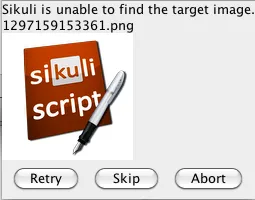
In case of a FindFailed, you get the following prompt:
Added in X1.1.1
Clicking Retry would again try to find the image. Capture/Skip would allow to (re)capture the image and Abort would end the script.
In case of clicking Capture you get another similar prompt, that allows you to either do the capture, finally skip or advise SikuliX to abort the script immediately.
Examples: 4 solutions for a case, where you want to decide how to proceed in a
workflow based on the fact that a specific image can be found. (pass is the python
statement, that does nothing, but maintains indentation to form the blocks):
# --- nice and easy
if exists("path-to-image"): # no exception, returns None when not found
pass # it is there
else:
pass # we miss it
# --- using exception handling
# every not found in the try block will switch to the except block
try:
find("path-to-image")
pass # it is there
except FindFailed:
pass # we miss it
# --- using setFindFailedResponse
setFindFailedResponse(SKIP) # no exception raised, not found returns None
if find("path-to-image"):
setFindFailedResponse(ABORT) # reset to default
pass # it is there
else:
setFindFailedResponse(ABORT) # reset to default
pass # we miss it
# --- using setThrowException
setThrowException(False) # no exception raised, not found returns None
functionname — the name of a function, that should handle ImageMissing situations (no apostrophes!)
To specify the respective handlers globally for all new Regions use FindFailed.setFindFailedHandler (or as a shortcut for that: FindFailed.setHandler) and FindFailed.setImageMissingHandler respectively.
Both methods might name the same handler function, since it is possible to differentiate the situation to handle by inspecting the type of the event, that is the parameter, when the handler is called. On the other hand with 2 handlers it is easier and more transparent to handle both situations completely different.
This is a basic handler:
def handler(event):
print "handler entered for", event.getType()
*type here might be FINDFAILED or MISSING
*do something
event.setResponse(PROMPT) # now go back and prompt the user
*or use RETRY, SKIP or ABORT
For more information on the possibilities in a handler see ObserveEvent.
Note for Java And this is how you setup a handler in your Java program:
For the specified region set the option, how Sikuli should handle
“not found” situations. The option stays in effect until changed
by another setFindFailedResponse().
ABORT — all subsequent find failed operations (explicit or
implicit) will raise exception FindFailed (which is the default when a
script is started).
SKIP — all subsequent find operations will not raise
exception FindFailed. Instead, explicit find operations such as
Region.find will return None. Implicit find operations
(action functions) such as Region.click will do
nothing and return 0.
PROMPT — all subsequent find operations will not raise
exception FindFailed. Instead you will be prompted for the way
to handle the situation (see using PROMPT). Only the current
find operation is affected by your response to the prompt.
RETRY — all subsequent find operations will not raise
exception FindFailed. Instead, Sikuli will try to find the target
until it gets visible. This is equivalent to using wait( ... , FOREVER)
instead of find() or using setAutoWaitTimeout(FOREVER).
For all subsequent find failed operations (explicit or
implicit) the specified handler should be visited in case of FindFailed or image not loadable.
(see using a FindFailed handler)
handler — the name of the handler function that should be visited.
By using this method you control, how Sikuli should handle not found
situations in this region.
True — all subsequent find operations (explicit or
implicit) will raise exception FindFailed (which is the default when a
script is started) in case of not found.
False — all subsequent find operations will not raise
exception FindFailed. Instead, explicit find operations such as
Region.find will return None. Implicit find operations
(action functions) such as Region.click will do
nothing and return 0.
you can group methods applied to the same region using Python’s with syntax:
# reg is a region object
with reg:
if not exists(image1):
click(image2)
wait(image3, 10)
doubleClick(image4)
All methods inside the with block (mind indentation) that have the region omitted are redirected to the
region object specified at the with statement.
IMPORTANT Usage Note
This only works without problems for region objects created on the scripting level using one of
the constructors Region().
Region objects created with Region methods, that return new region objects, might not work though in some cases.
If you get strange results or errors in the with block (e.g. syntax error __enter__ is not defined for this region) cast your Region object to a scripting level Region object using
castedRegion = Region(regionNotWorking) and use castedRegion in the with clause
or do it like this:
# reg is a scripting level region object
regNew = reg.left() # returns a non-scripting-level region object